
🪙 Chest Shops
A chest shop is a chest with a sign on it. You fill the chest with what you want to sell, you write your price on the sign, and anyone who right-clicks the sign buys from you — even while you are offline.
InfoChest shops only work inside a town’s shop plot. If you have never sold anything to another player before, read Economy first.
What You Need
- A town (or at least a plot inside one)
- A shop plot — the piece of land your shop stands on
- A chest (a double chest works too)
- A sign
Opening a Shop
1. Claim the land and make it a shop plot
Stand on the spot where you want your shop and run:
/plot set shop
Your town has to own that land. If the command does nothing, the land is not claimed yet — claim it first, then set it to a shop plot.
WarningShop plots are usually a separate plot from your main claim. You may need to stand on the exact block you want to use.
2. Place and fill the chest
Put the chest where the shop should be, then fill it with the item you want to sell.
- One item type per chest, please
- A double chest sells its whole content as one shop
- More later, when you want to restock
3. Place the sign
Put a sign directly against the chest (a wall sign on the side of the chest works best).
4. Write your shop details
The sign has four lines. Fill in the first three:
| Line | What to write | Example |
|---|---|---|
| 1 | [shop] | [shop] |
| 2 | The price for the whole bundle | 100 |
| 3 | How many items one purchase gives | 16 |
Leave line 3 empty and the shop sells one item per purchase.
Prices can be written in whatever way you like:
| You write | Customers pay |
|---|---|
100 | 100 |
$100 | 100 |
1,000 | 1,000 |
1.5k | 1,500 |
2m | 2,000,000 |
5. The sign takes over
As soon as you finish writing the sign, it becomes a shop sign:
[shop]
Diamond
$10 x16
64 available
- Line 1 — always
[shop] - Line 2 — the name of the item in your chest
- Line 3 — your price and how many items one purchase gives
- Line 4 — how many items are still in the chest
The sign keeps itself up to date. Restock the chest and the last line counts up and down on its own.
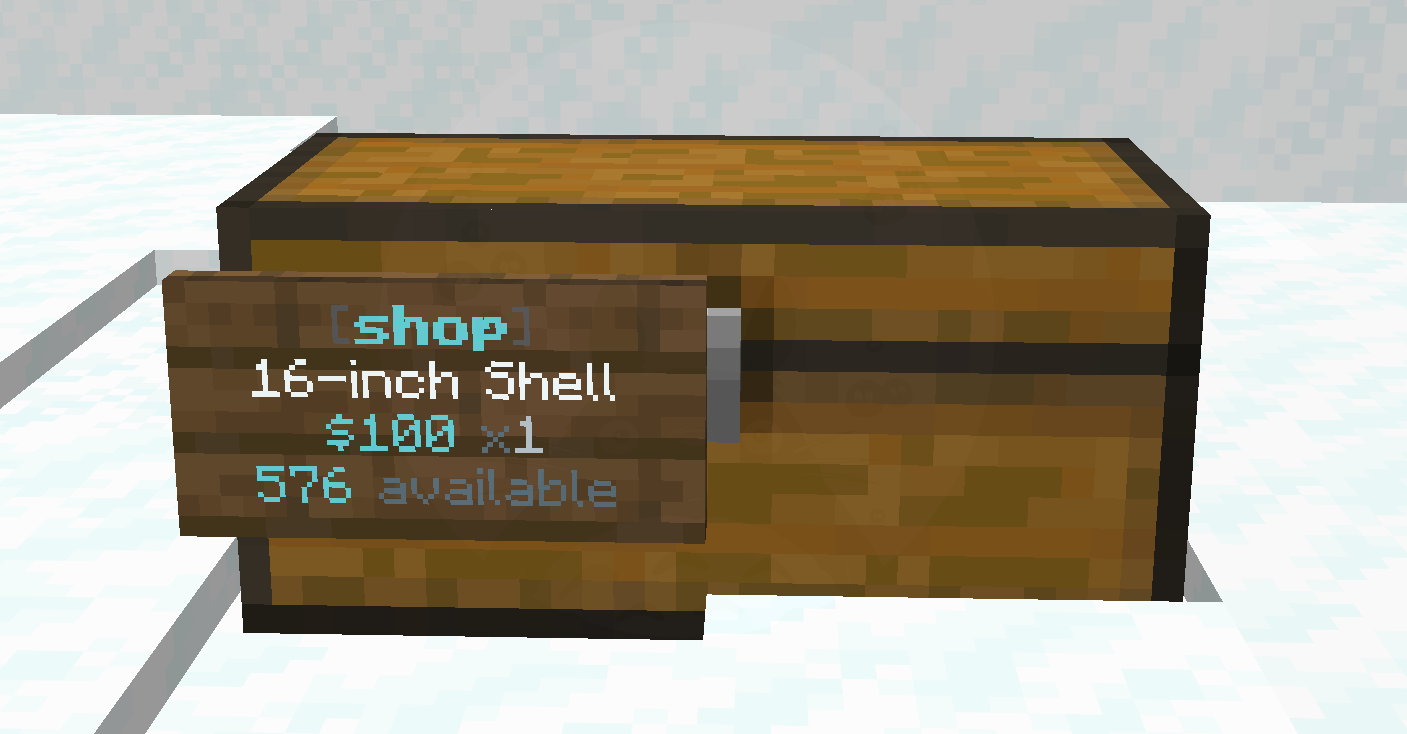
InfoThe sign is sealed once your shop is created, so nobody can rewrite your price. You change it yourself, see below.
Buying From a Shop
Right-click the sign.
- The price is taken from your balance
- The items land in your inventory
- The seller gets paid, even if they are offline
You are only charged if you have enough money and enough free inventory space — if your inventory is full, nothing happens and you keep your money.
Buying is rate-limited to one purchase every few ticks, so holding down right-click will not drain a shop in a second. Tap it instead.
WarningYou cannot buy from your own shop, and hoppers are not allowed to pull items back out of a shop chest. Restocking by hand or with a hopper works fine.
Restocking Your Shop
Just put the items back in the chest — by hand, or with a hopper pointing at it. The sign updates within a second and your customers can buy again immediately.
Hoppers can push stock in. They cannot take stock out, so nobody can empty your shop without you.
One Item Type Only
A shop sells exactly one kind of item.
If your chest ends up holding two different item types, the shop switches itself off and the sign turns red:
[shop]
Mixed items
shop disabled
Take the extra items out and the shop comes back on its own. The same thing happens with an empty chest — it shows Empty chest until you stock it.
Changing Your Shop
Sneak and right-click your own sign to open the shop editor. You can:
- Set the price — type a new number
- Set the amount — how many items one purchase gives
- Use the chest item — switch your shop to whatever single item your chest holds
- Remove the shop — delete it
You can also change the item your shop sells by emptying the chest, putting the new item in, and using Use the chest item.
InfoOnly you and the server staff can open the editor, and only you and staff can break your shop’s sign or chest.
Town Tax
Your town can take a small cut of every sale made inside it, and that money goes into the town bank.
/t shoptax
Shows the current percentage for your town. The mayor (or an assistant) can change it:
/t shoptax 10
That means 10% of every sale goes to the town bank and 90% goes to the shop owner. 0 turns the tax off again.
Finding Shops
The shop browser
Run this to see every shop on the server:
/chestshops
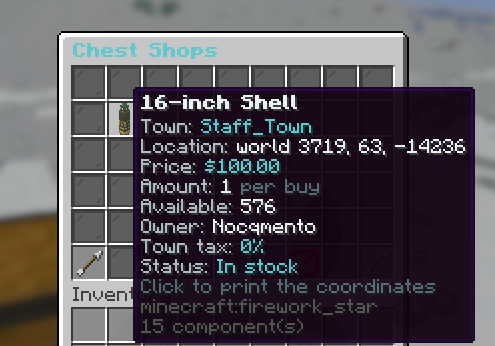
Each shop shows the item it sells, and the tooltip tells you the town, the price, how many items you get, how many are left and who owns it.
- The sort button orders the list by price, stock, amount, town or distance
- The search button lets you look for an item, a town or a seller
- Clicking a shop prints its coordinates so you can walk to it
On the map
Every shop also shows up on the SovereignMC map as a green dollar sign. Click it and the panel shows the same details — price, amount, stock, town and owner.
Commands
| Command | Description |
|---|---|
/chestshops | Open the shop browser |
/chestshops search <text> | Open the browser filtered by an item, town or seller |
/plot set shop | Turn the plot you stand on into a shop plot |
/t shoptax | Show your town’s shop tax |
/t shoptax <0-100> | Set your town’s shop tax (mayor/assistant) |
Troubleshooting
| What you see | What it means | What to do |
|---|---|---|
Not a shop plot on the sign | The land is not a shop plot, or the chest and the sign are on different plots | Run /plot set shop on the exact block, and make sure the chest and sign are together |
No town here | The land is not claimed by a town | Claim it for your town first |
Mixed items | Your chest holds more than one item type | Remove the extra items |
Empty chest | There is nothing to sell | Put the item you want to sell in the chest |
shop disabled | The shop cannot sell right now | Read the second line of the sign, it says why |
0 available | The shop is out of stock | Restock the chest |
| Nothing happens when you click | Not enough money, or your inventory is full | Check your balance and free a slot |
SuccessStill stuck? Ask in the Discord — the staff are happy to help you set up your first shop.