
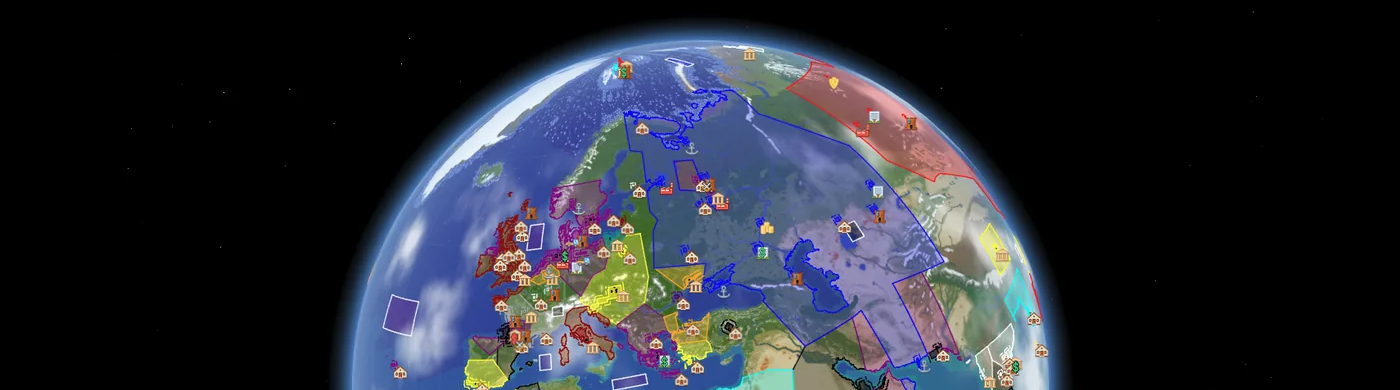
The world map shows the whole Nations world live: every town, nation border, shop, siege and online player. Open it in your browser at sovereignmc.net/map, or type /map in game for the link.
- See the world: scout a rival, find somewhere to settle, or check how a war is going from anywhere.
- Search for anything: search for any town, nation, player, shop item or coordinates.
- Get around: plan a route between two places and see how far it is in blocks.
Globe and flat map
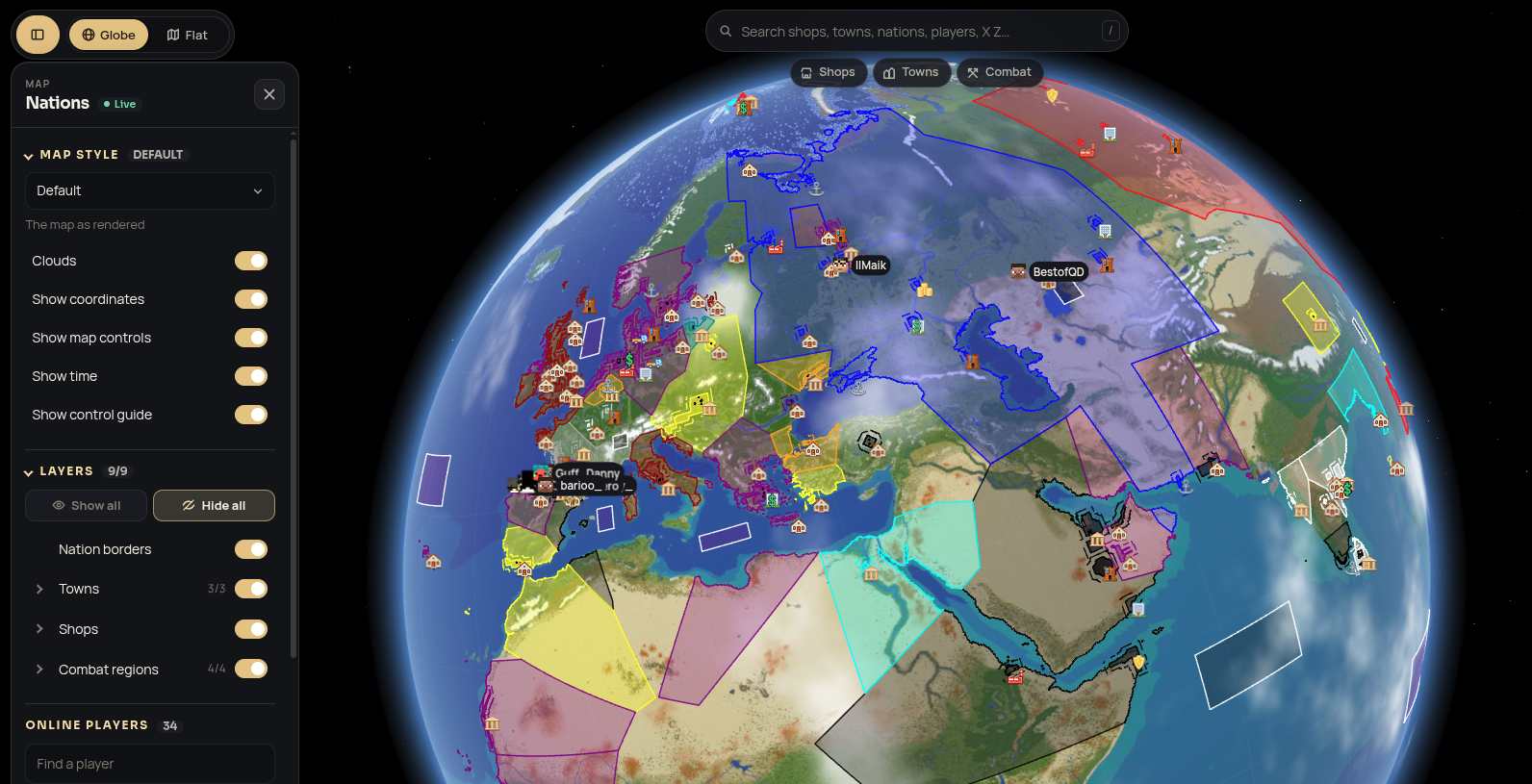
The map has two views, switched with the Globe and Flat buttons in the top left (or press G).
- Globe: the whole Earth as a 3D globe. Drag to spin it, scroll to zoom, and right-drag to tilt and rotate.
- Flat map: a top-down map you can zoom right in on, down to individual builds. Drag to move, scroll to zoom, and double-click to zoom in.
The controls for the view you’re in are listed along the bottom of the screen. You can hide them in the side menu.
Searching
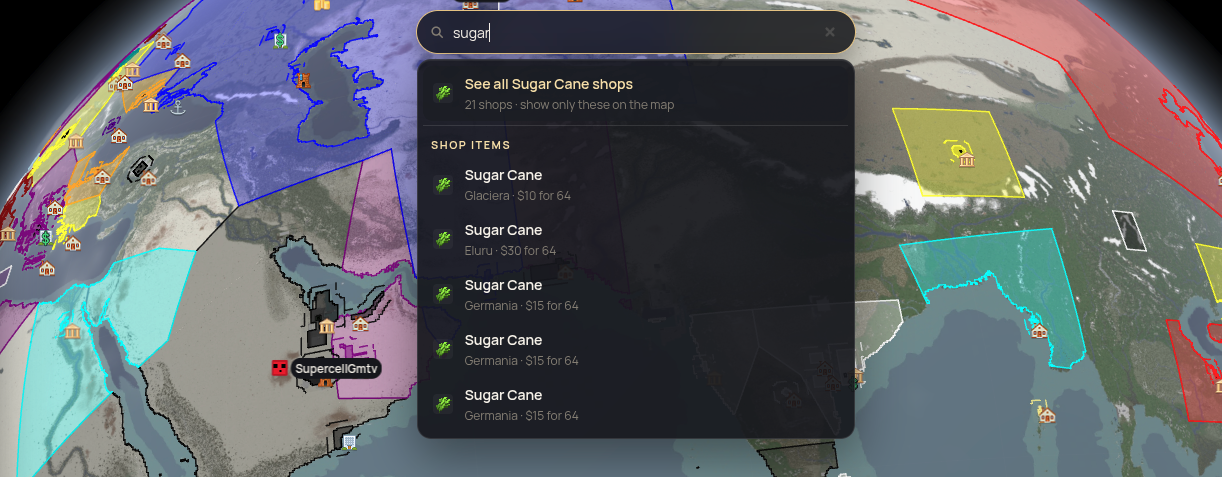
The search bar at the top finds anything on the map as you type:
- Towns, nations and players: pick a result to fly to it and open its details.
- Shop items: type an item such as
sugar caneto see who sells it, or choose the suggestion See all Sugarcane shops to show every one of them on the map at once. - Coordinates: type
X Z(for example2704 -2080) to fly straight there. - See all: type a word like
towns,playersorregionsto filter what’s seen on the map.
Under the search bar are three quick filters: Shops, Towns and Combat. Each one shows only that kind of thing on the map. Press it again to bring everything back.
Towns and nations
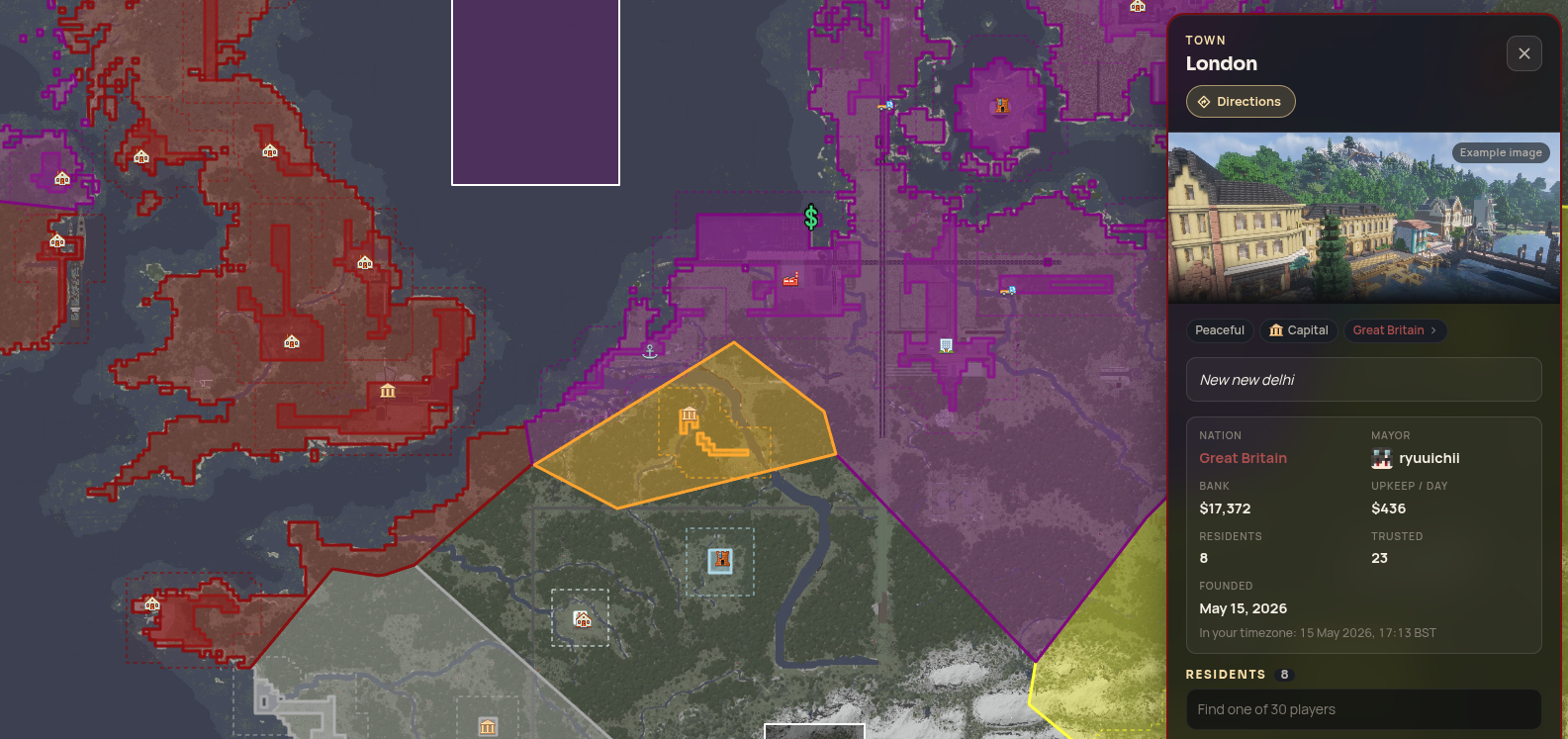
Click any town or nation to open its details on the right:
- Towns: mayor, nation, bank, upkeep, residents, when it was founded, and whether it is peaceful or occupied.
- Nations: leader, capital, towns and members, shown in the nation’s own colour.
Badges in a panel are links: click a shop’s town to open that town, or a town’s nation to jump to the nation.
The side menu (top left) lists every town. Use the town type filter there to show only capitals, forts or another type; their claims and outskirts are filtered with them.
Shops
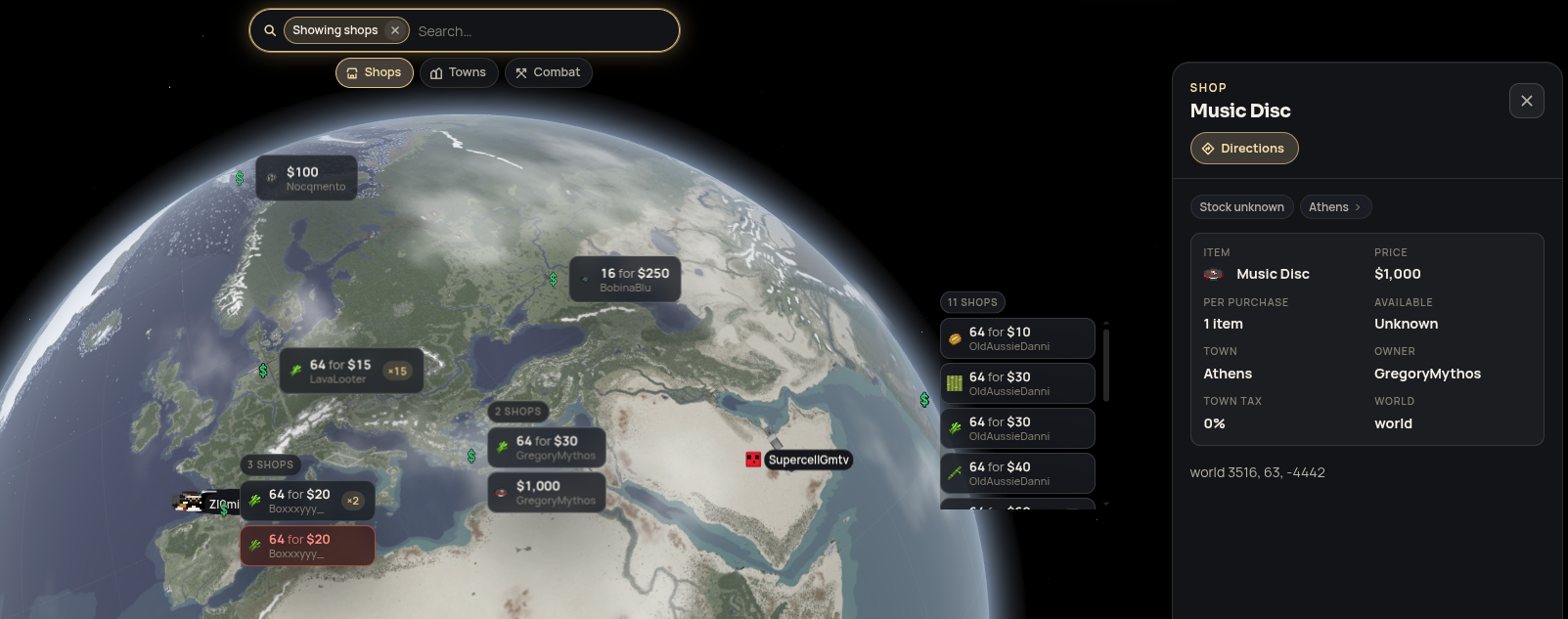
Player chest shops appear as dollar icons. Press Shops to show only shops, with the items and prices on the map.
- Duplicate shops (same owner, item and price) show once with a count, such as ×3.
- Out of stock shops show in red.
- Click a card to open that shop’s details, including stock, town tax and its exact location.
A shop showing Stock unknown is in a part of the world that isn’t loaded right now, so its stock can’t be read. It is not necessarily empty.
To always see shop cards, turn on Shop contents under Layers > Shops in the side menu, or search for any item in the search bar.
Map styles and layers
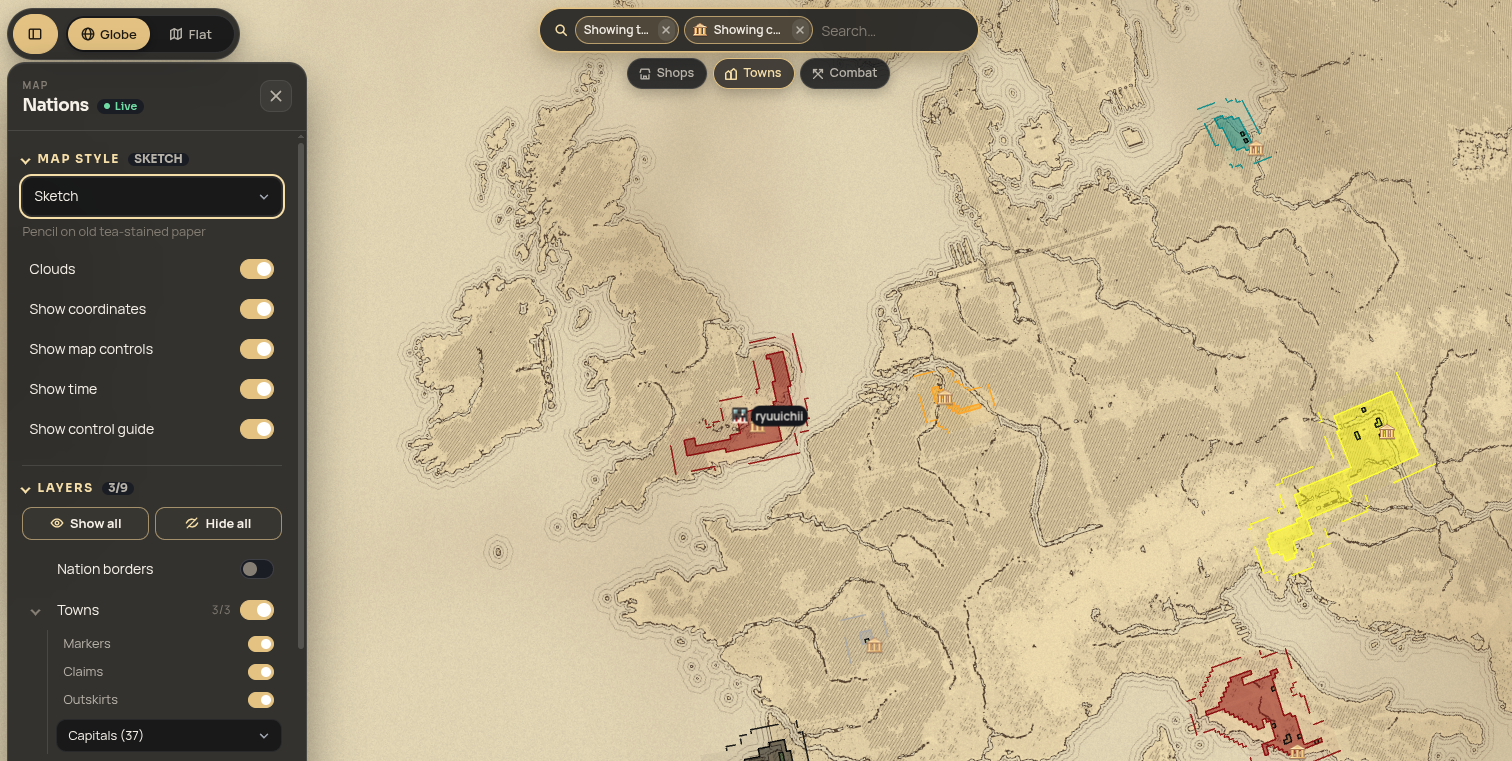
Open the side menu (top left) to change how the map looks:
- Map style: switch between styles such as the default map, satellite and a pencil sketch.
- Layers: turn nation borders, towns (markers, claims and outskirts), shops and combat regions on or off.
- Display options: clouds, coordinates, map controls, server time and the control guide.
Your choices are remembered the next time you open the map.
Directions
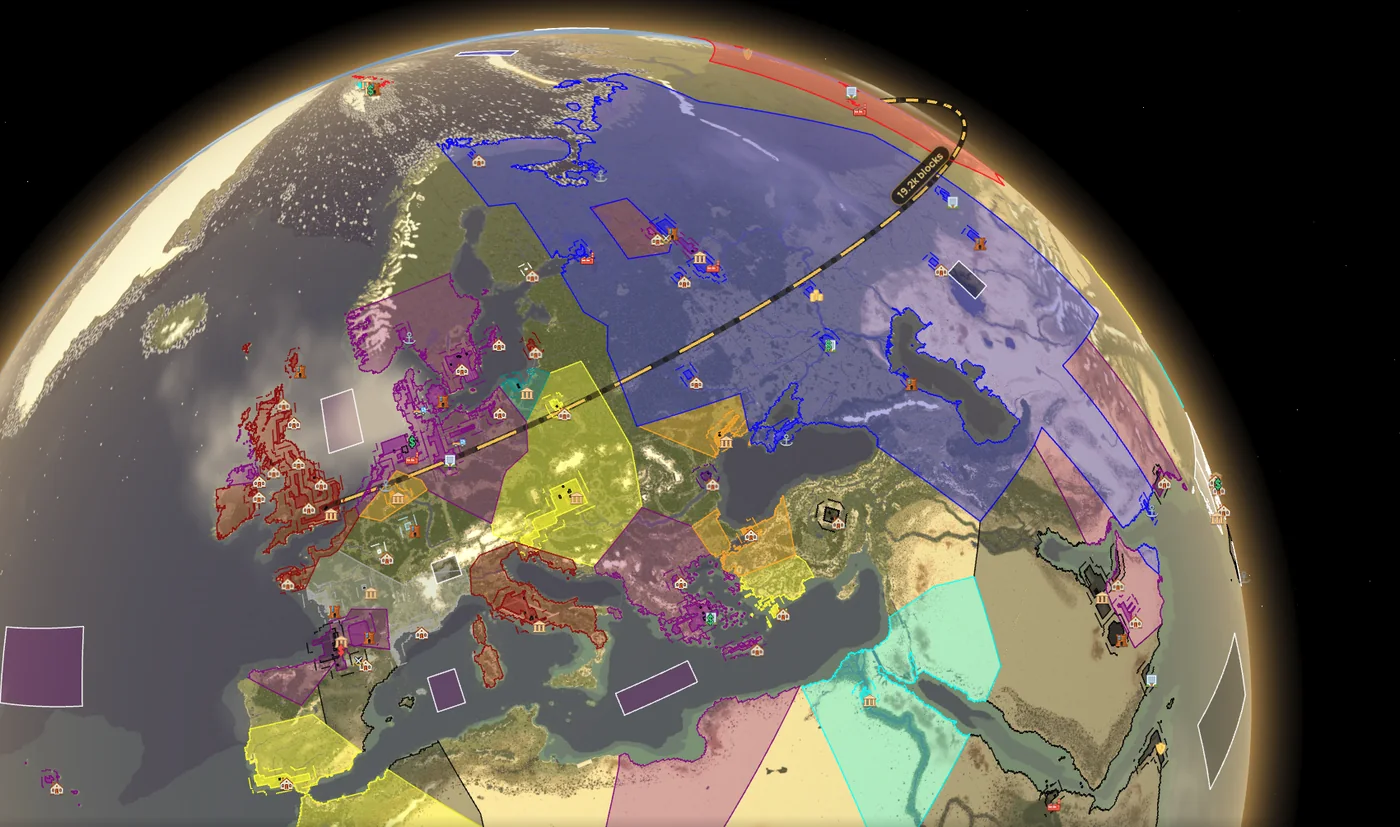
Use Directions to plan a trip:
- Open a town, nation, player or shop and press Directions, or click an empty spot on the map and press the directions button in the popup.
- Choose where you’re starting from and where you’re going.
- The route is drawn on the map with its length in blocks.
Directions work on both the globe and the flat map.
Coordinates
Click an empty spot on the map to see its coordinates. From that popup you can copy them or get directions to that spot. Click anywhere else to close it.
The box in the bottom left shows the coordinates under your mouse and the current server time (Italian time, CET or CEST), with your own time beside it.
Combat and sieges
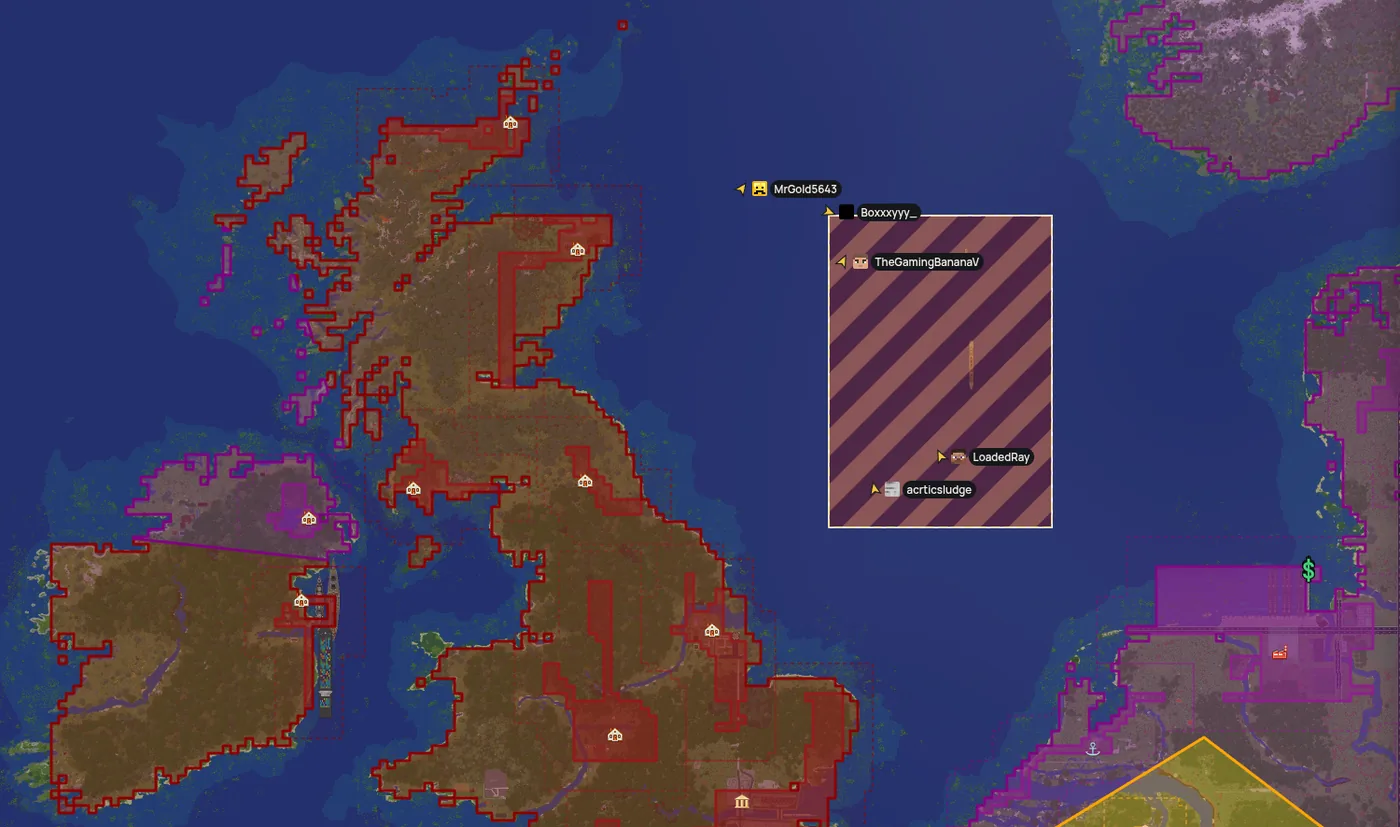
Press Combat to focus on wars and regions:
- PvP regions and Movecraft (naval) regions, with who controls each one.
- Wars and siege camps.
- Sieges in progress are marked with moving red and black hazard stripes. Stripes that aren’t moving mean a siege zone that is currently quiet.
Click a region or siege to see who is fighting and the details of the battle. For how wars work, see SovereignWar.
Players
Online players appear on the map with their skin, and the side menu lists everyone online. Click a player to fly to them. Hidden players are listed but have no location.
Sharing a place
The map’s address changes as you move, so you can copy it from your browser to share exactly what you’re looking at. Every nation also has a See on map button on its page on the Nation Leaderboard.